Want to know how to see who shared your Facebook post? Open your published content and tap or click the share count to find available public reshares. You may see the names and usernames of people who made your content publicly accessible. However, privacy settings can keep some activity hidden, especially within restricted audiences and private groups.
You can find this information through the mobile app, a desktop browser, or your Page dashboard. This article explains five easy steps to identify visible activity, understand missing names, and track engagement through Meta Business Suite.
Can You See Who Shared Your Facebook Post?
Yes, you can identify people who redistributed your content publicly if Facebook makes their activity visible. Simply select the share count to see available names and profiles. However, activity limited to friends or private groups may not appear.
For example, your content may have 20 shares, but only 8 names are visible. This happens because privacy settings control who can access the information. The available details may also vary depending on your device, account, and audience settings.
5 Easy Steps to See Who Shared Your Facebook Post
Want to see who shared your post? You can find out who shared your content by opening the original publication and checking its sharing details. Follow these five simple steps.
Step 1. Open Your Facebook Profile
Log in to your Facebook account using the app or a web browser. Click your profile picture in the top right corner to access your timeline.
Step 2. Find the Post You Want to Check
Scroll through your news feed or profile to find the specific content. You can also use your Activity Log to locate older posts by date.
Step 3. Locate the Share Count
Look below your content to see the number of shares. This total helps you understand how often your post was shared with others.
Step 4. Click or Tap the Share Count
Select the share count to see who shared your post, if Facebook provides that option. If the button is unavailable, try opening the content in a desktop web browser.
Step 5. Review the List of Visible Shares
Check the list of names and profiles to identify each visible sharer. You may be able to see public activity, but privacy settings can restrict access to certain details.
How to See Who Shared Your Facebook Post on Mobile
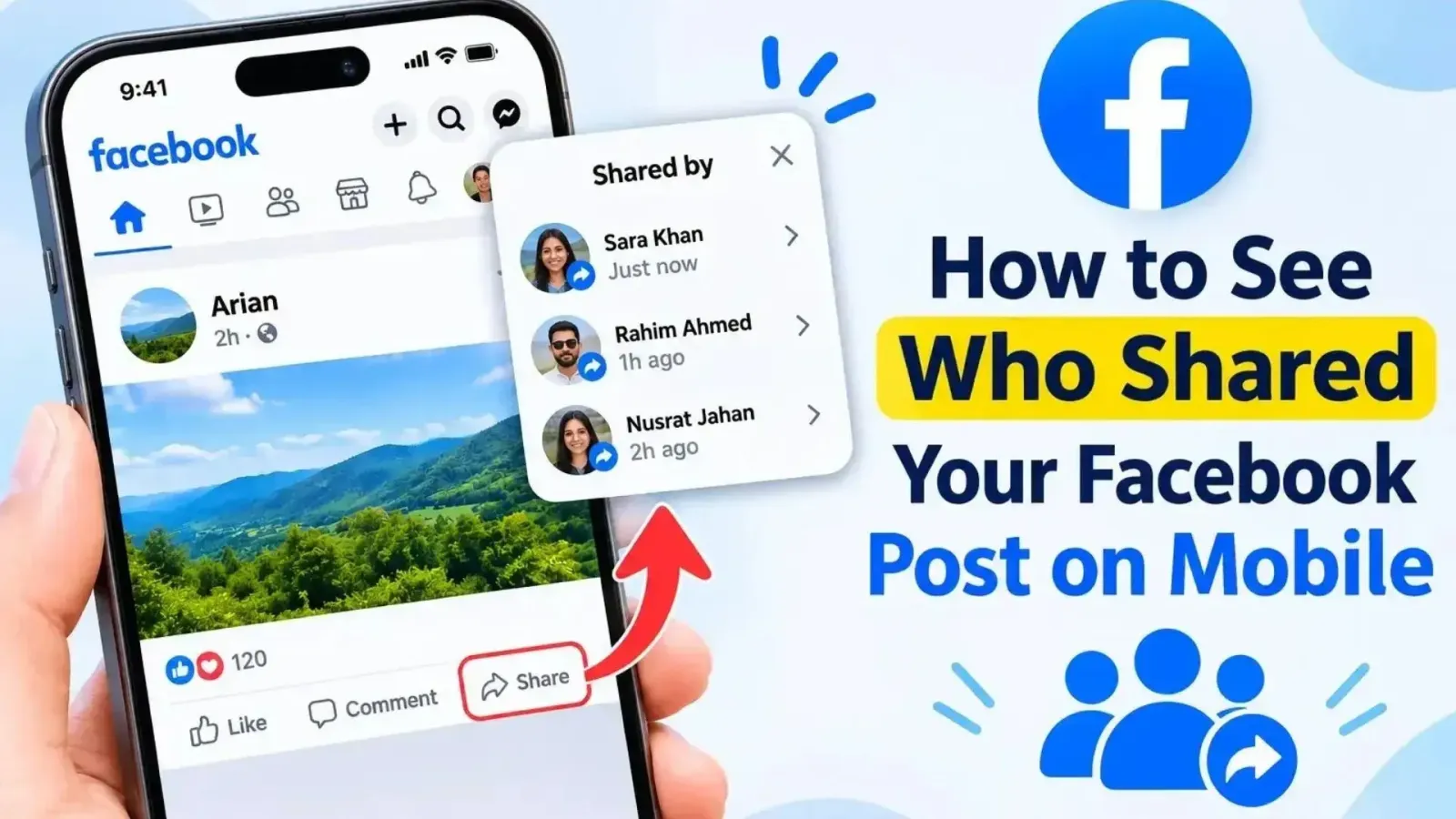
You can find available sharing information through the mobile app on Android or iPhone. The process is similar on both devices, although certain menu options may appear in different locations.
How to Check Facebook Shares on Android
- Launch the Facebook app on your Android phone.
- Navigate to your timeline and locate the original content.
- Find the number displayed beside the sharing indicator.
- Tap the count if it is selectable.
- Review the names and public activity available to you.
How to Check Facebook Shares on iPhone
- Launch the application on your iPhone.
- Navigate to your account and find the relevant publication.
- Look beneath the content for sharing information.
- Select the displayed number if the option is available.
- Review any accessible public reshares.
The interface may differ between Android and iOS. If the information does not open, try viewing the same content through a desktop browser.
How to See Who Shared Your Facebook Post on Desktop
You can review available public reshares from a computer using a web browser. The desktop interface may provide access to details that are difficult to locate on a phone.
Follow these instructions:
- Visit Facebook and sign in.
- Navigate to your timeline.
- Locate the publication you want to inspect.
- Select its date or timestamp to open it separately, if needed.
- Find the sharing indicator beneath the content.
- Select the count if it is clickable.
- Review the available public activity.
If the option does not respond, try opening the publication directly or using another device. Some accounts display only the total number without identifying individual users.
How to Check Who Shared Your Facebook Page Post
Business Page administrators can review available sharing activity and engagement statistics through their Page dashboard or Meta Business Suite. These tools support businesses in understanding how audiences interact with their content.
Check Shares on Your Facebook Page
- Open the Page you manage.
- Find the publication you want to examine.
- Locate its sharing indicator.
- Select the count when available.
- Review accessible public reshares.
Meta Business Suite allows administrators to monitor content performance. Open the dashboard, select your Page, and navigate to the Insights or Content section.
You can review several metrics:
- Shares: How often viewers redistributed your content.
- Reach and Views: How widely your publication was displayed.
- Reactions and Comments: How audiences responded.
- Engagement: Overall interactions with your content.
These insights help you track performance and identify which topics attract attention. However, analytics do not identify everyone involved in private sharing activity.
Why Can't You See Who Shared Your Facebook Post?
Facebook may hide individual sharing details because of privacy settings, restricted audiences, or interface limitations. Even when the total count is visible, the identities behind some interactions may remain unavailable.
Here are the most common reasons:
Reason | Explanation |
Friends-only sharing | The selected audience may exclude you. |
Private groups | Only permitted members can access the content. |
Messenger activity | Private conversations remain confidential. |
Deleted content | Removed reshares may no longer be accessible. |
Restricted audiences | Custom settings limit visibility. |
Interface limitations | Individual details may not be available for every publication. |
For example, you might notice 15 total shares but identify only 6 people. This difference does not necessarily indicate a technical problem. Audience permissions determine what information you can access.
How Else Can You Find Who Shared Your Facebook Post?
If individual sharing details are unavailable, you can explore notifications, search results, and Page insights. These alternatives may provide additional information about publicly accessible activity.
Check Facebook Notifications
Open your notifications and look for recent mentions or sharing alerts. You may receive an update when someone publicly redistributes your content or tags your account. However, the platform does not generate an alert for every interaction.
Search for Public Facebook Shares
Copy a distinctive sentence or text from your publication and enter it into the search bar.
You may discover public profiles, business Pages, or community discussions where your content appears.
For example, if you published a useful tech tip, searching for its unique wording might help you locate a public discussion or forum reference. Remember that search results are not always complete.
Review Facebook Page Insights
Business owners can use Meta Business Suite to track content performance. The available analytics help measure distribution and engagement, even when individual viewers cannot be identified.
Can You See Private Facebook Post Shares?
No, you cannot access private sharing activity without the necessary viewing permissions. Audience settings determine who can see redistributed content.
For example, someone might send your publication through Messenger, distribute it within a private group, or limit access to selected friends.
If you are not included in the permitted audience, those details will remain unavailable. Be careful with third-party websites that promise to reveal hidden identities. Avoid entering your password, username, or verification code into unfamiliar tools. Legitimate services cannot bypass the platform's privacy restrictions.
How to Increase Shares on Facebook Posts
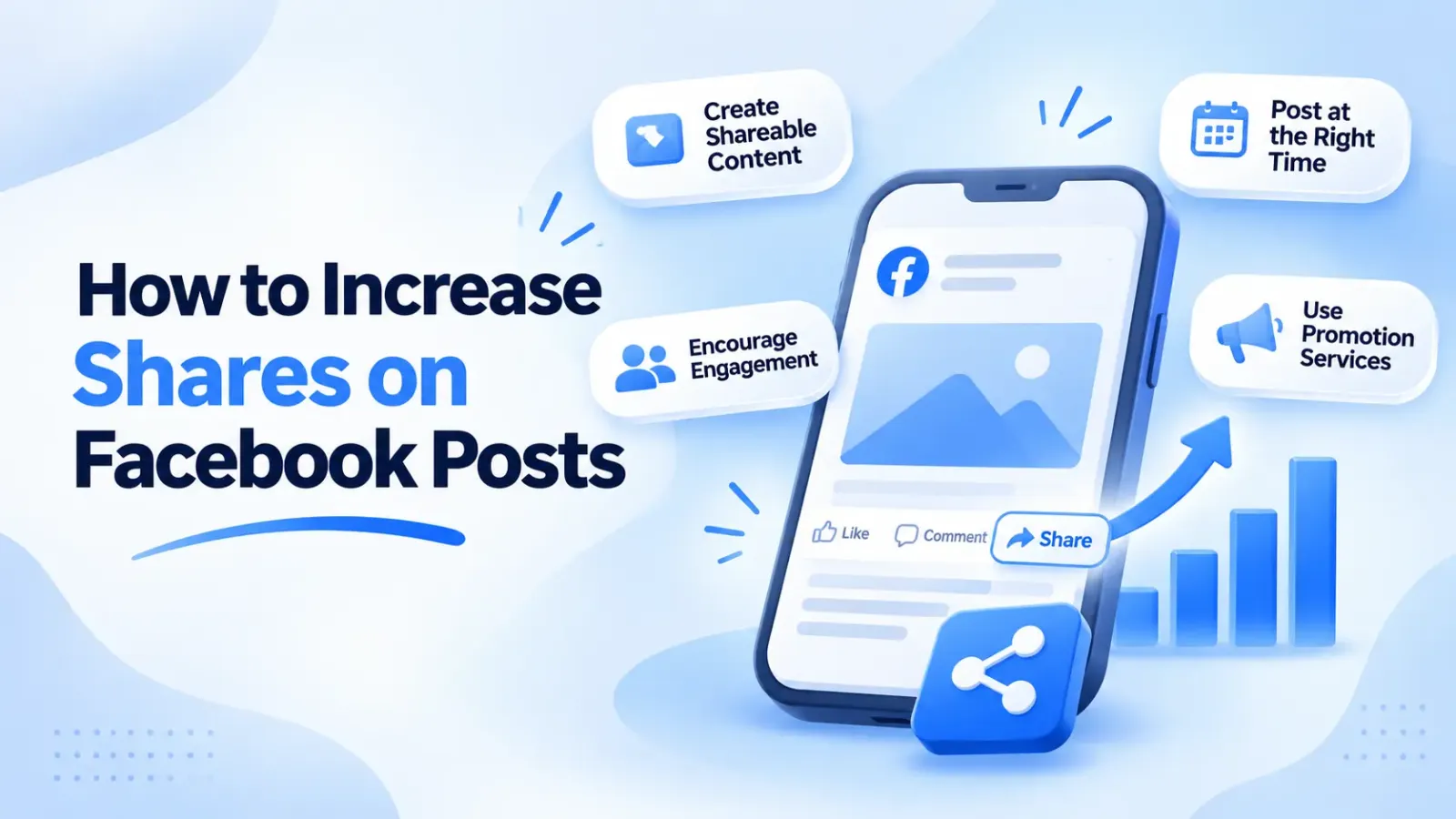
You can encourage more people to distribute your content by publishing useful information, choosing suitable posting times, and building meaningful conversations.
Here are four practical strategies.
Create Shareable Facebook Content
Publish helpful tips, original visuals, short videos, and educational information.
For example, a useful tutorial or practical business tip may encourage readers to recommend your content to others.
Post When Your Followers Are Active
Use Page Insights to understand when your audience interacts with your publications. Compare different posting times and identify patterns that work for your community.
Encourage Natural Engagement
Ask meaningful questions and invite readers to express their opinions. Respond to comments and thank people who contribute useful ideas. Friendly conversations can encourage further interaction.
You can also explore promotional services to support content distribution. Understanding how to buy Facebook post shares can help you learn about available options and the ordering process.
TrendEvo provides engagement services for different promotional needs. Keep in mind that paid activity and genuine audience interest represent different performance measures.
Can an SMM Panel Help Increase Facebook Post Shares?
Yes, an SMM panel can provide promotional sharing services for eligible public content. These platforms allow users to explore different options, review packages, and submit orders based on their needs.
For example, the TrendEvo Facebook SMM Panel offers access to social media promotion services. Users can explore the available options and review service details before placing an order.
However, purchased activity does not automatically improve organic reach or attract interested followers. For stronger long-term results, focus on valuable content, meaningful conversations, and consistent audience engagement alongside your promotional strategy.
TrendEvo offers social media engagement services for creators, businesses, and individuals looking to support their promotional activities.
Through its platform, users can explore available services, review ordering details, and choose options based on their marketing needs.
The ordering process allows customers to select suitable packages and submit the required information.
If you're planning to promote your content, explore the available options through TrendEvo and select services that align with your goals.
Final Thoughts
Now you know the basic process for finding publicly visible sharing activity. Follow the five steps above, use your preferred device, and review the available details.
If you manage a business Page, Meta Business Suite can help you monitor reach, engagement, and other useful insights.
Remember that private activity remains restricted by audience permissions. Continue creating valuable content, track your results, and improve your social media strategy based on what works for your audience.
Frequently Asked Questions
1. Can I See Who Shared My Facebook Post if They Aren't Friends?
Yes, you may identify someone outside your friend list if their sharing activity is public. Visibility depends on their selected audience settings and available details.
2. Why Can't I Click the Shares on Facebook?
The sharing count may not be selectable because of interface differences, audience restrictions, or unavailable details. Try opening the original publication through another device.
3. Can I See Who Shared My Facebook Post in a Private Group?
You may see activity within a private group if you are a member with the necessary permissions. Otherwise, its content remains inaccessible.
4. Does Facebook Notify You When Someone Shares Your Post?
You may receive notifications about certain public reshares or mentions. However, not every interaction generates an alert, particularly when the audience is restricted.
5. Can Meta Business Suite Show Who Shared My Facebook Post?
Meta Business Suite provides Page performance insights, including available sharing metrics. However, it cannot identify everyone who redistributed your content privately.
6. Can TrendEvo Help Me Get More Facebook Post Shares?
Yes, TrendEvo provides social media promotional services, including sharing options. Explore its Facebook SMM Panel to review available packages and select services that match your goals.